Finding a Lawyer
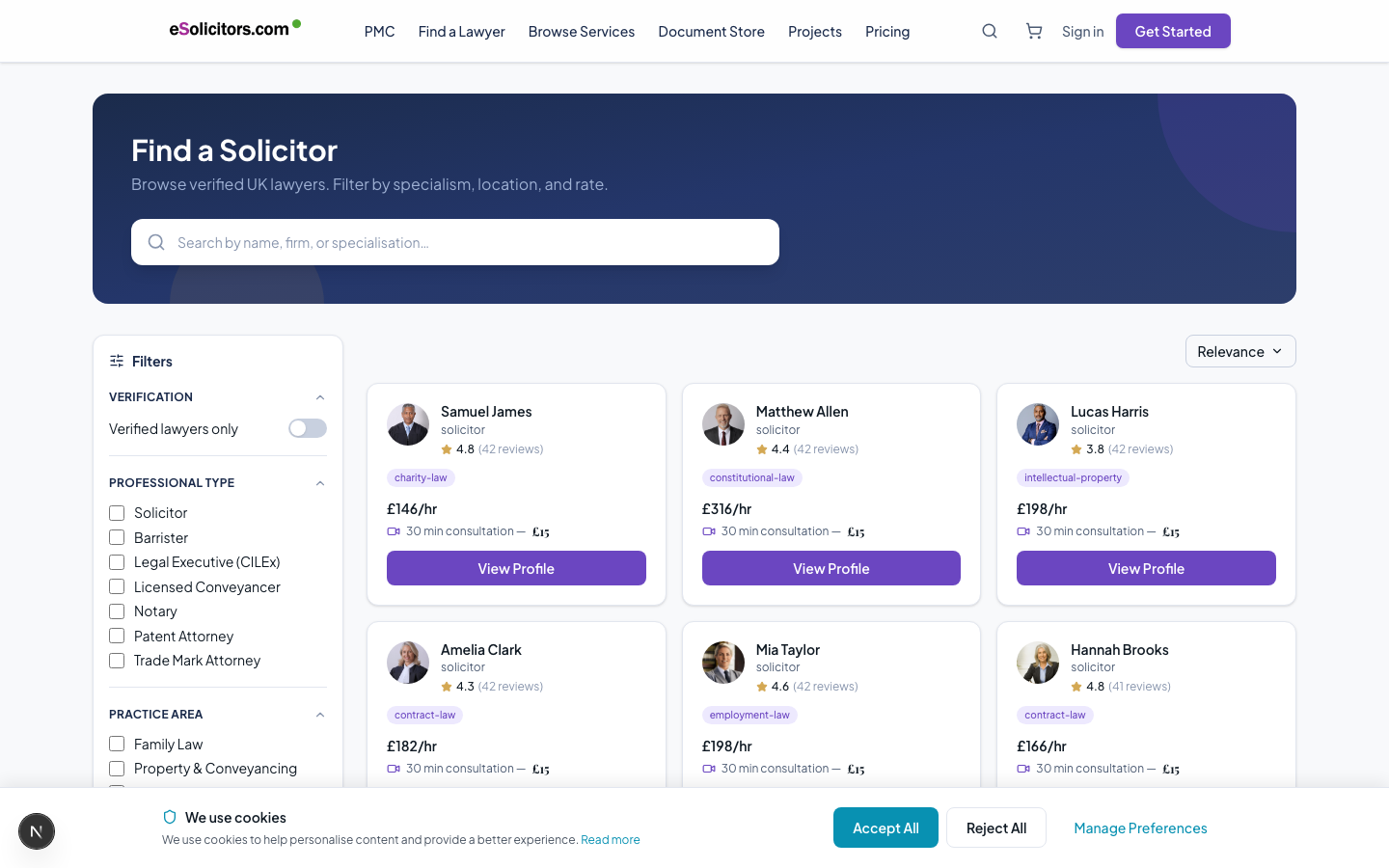
eSolicitors offers three ways to find the right lawyer for your matter. All lawyers are verified before appearing in search results.
Method 1: Browse the Directory
Go to esolicitors.com/lawyers to browse all available lawyers.
Filter by:
- Practice area - family law, employment, property, commercial, immigration, criminal, and more
- Jurisdiction - England & Wales, Scotland, Northern Ireland, United States, international
- Hourly rate range - set a minimum and maximum
- Verification level - Basic, Standard, or Enhanced
- Languages - find lawyers who speak your language
- Pricing model - fixed fee, hourly, retainer, conditional fee, etc.
Each lawyer card shows their name, verification badge, practice areas, hourly rate, and average review rating.
Method 2: Search
Use the search bar at the top of any page to search by:
- Lawyer name
- Practice area (e.g., "employment law", "divorce", "commercial contracts")
- Legal issue (e.g., "unfair dismissal", "boundary dispute", "trademark registration")
Search results are grouped by lawyers, practice areas, and services.
Method 3: AI Matching Wizard (Find a Lawyer)
The Find a Lawyer wizard at esolicitors.com/find-a-lawyer uses AI to match you to the most relevant lawyers for your specific situation.
The wizard asks:
- What type of legal matter do you have?
- Where are you located?
- What is your approximate budget?
- Is there a time deadline?
The AI scores all eligible lawyers against 7 criteria:
| Criterion | How It Scores |
|---|---|
| Sub-category match | Most important - specific legal area alignment |
| Practice area match | Broad legal area alignment |
| Jurisdiction match | Lawyer is qualified in your jurisdiction |
| Years of experience | Relevant experience level |
| Budget compatibility | Your budget vs lawyer's rate |
| Verified status | Enhanced-verified lawyers score higher |
| Review rating | Client reviews |
The top 3 lawyers and 3 relevant services are shown, with a clear explanation of why each was matched.
Understanding Verification Badges
Every lawyer profile displays a verification badge showing their verified status:
| Badge | Colour | Meaning |
|---|---|---|
| Enhanced | Gold | All 5 verification steps complete: registration, certificate, photo ID, PII, and address |
| Standard | Teal | Registration, practising certificate, and photo ID verified |
| Basic | Blue | Registration number verified only |
| (None) | - | Pending verification - not yet live in search |
Choose Enhanced-verified lawyers for the most important matters - they have been most thoroughly checked.
Jurisdiction Badges
Lawyers also display jurisdiction badges showing where they are verified to practise:
- UK Verified - Confirmed via SRA or BSB register
- US [State] Verified - Confirmed via state bar API (CA, NY, TX, FL, IL)
- International Verified - Confirmed by the compliance team
For cross-border matters, look for lawyers with relevant jurisdiction badges.
Reading a Lawyer Profile
A lawyer's public profile shows:
- Bio - their professional background and approach
- Practice areas - specific areas of law they work in
- Verified jurisdictions - where they are confirmed to practise
- Verification badge - their verification level
- Hourly rate - their standard rate
- Pricing models available - fixed fee, hourly, conditional fee, etc.
- Languages spoken
- Review rating and reviews - feedback from past clients
- Services - their specific service listings with prices
- Years of experience
Dual-Qualified Lawyers
Some lawyers are qualified in more than one jurisdiction. Their profiles show both jurisdictions with separate verification badges. If your matter crosses jurisdictions (e.g., a UK-US commercial contract), look for dual-qualified lawyers.
What You Cannot See Before Hiring
To protect your privacy (and the lawyer's), certain information is only visible after you both formally proceed with a matter:
- The lawyer's direct email address and phone number
- Your surname, email address, and phone number (from the lawyer's perspective)
Full contact details are exchanged only after both parties click "Proceed with Scoping" and the cooling-off period expires.